
SIP Trunking
Overview
Connect your existing phone system and numbers to OtoniStark
This guide will help you understand and set up SIP integration. If you need clarification during setup, our support team is available to assist.What is SIP Integration
SIP (Session Initiation Protocol) integration allows you to connect your existing phone system to OtoniStark. Think of it as building a bridge between your current phone setup and our AI platform. This means you can:
- Use your existing phone numbers with our AI assistants
- Keep your current phone system and provider
- Make and receive calls through your existing setup
- Maintain full control of your numbers
- Reduce carrier costs by using local VoIP providers with better rates
How It Works
When you integrate your phone system with OtoniStark:
- Inbound Calls: Calls to your numbers are routed through your phone system to our AI assistants
- Outbound Calls: Our AI assistants can make calls appearing from your numbers
- Management: You keep managing your numbers through your current provider
- Cost Efficiency: Leverage your VoIP provider’s competitive rates for call termination
Integration Options
You can connect your phone system to OtoniStark in two ways:
1. PBX Extension Integration
This is like giving our AI platform an “extension” on your phone system:
- What it is: Connect a specific extension from your PBX/phone system
-
Perfect for:
- Testing the integration
- Routing specific extensions to AI
- Simple setup with existing phone systems
-
You’ll need:
- Your extension number (e.g., 1000)
- Extension username and password
- Your PBX server address (e.g., pbx.yourcompany.com)
Real-world example:
Your office uses extensions 1001-1010 for staff
			You set up extension 1011 for the AI assistant
			Calls to 1011 go to the AI
The AI can make calls appearing as extension 10112. Direct Number Integration
This connects specific phone numbers to our platform:
- What it is: Route one or more of your phone numbers to our AI
-
Perfect for:
- Dedicated AI phone lines
- Customer service numbers
- Sales or support lines
-
You’ll need:
- Your phone number (e.g., +1 555 0123)
- SIP credentials from your provider
- Provider’s SIP server address
Real-world example:
You have a support number: +1 555 0123
			You connect this number to our AI
			All calls to +1 555 0123 are handled by the AI assistant
The AI makes outbound calls showing +1 555 0123Authentication & Call Flow
Bidirectional Configuration
The SIP integration uses the same credentials for both inbound and outbound calls:
-
Inbound Calls
(VoIP → OtoniStark):
Your VoIP system authenticates using username/password ↓ Calls reach our platform ↓ AI assistant answers -
Outbound Calls
(OtoniStark → VoIP):
AI initiates call
			↓
			Our platform authenticates to your VoIP using same username/password
			↓
			Call reaches destination
Credential Synchronization
For the integration to work properly:
- The credentials you set in OtoniStark dashboard must match exactly with your VoIP configuration
- The same username/password combination is used for both directions
- Any changes to credentials must be updated in both systems
Setting Up Your Integration
Step 1: Gather Your Information
For PBX Extension:
Extension number: e.g., 1000
			Server address: e.g., pbx.company.com
			Username: Your extension username
Password: Your extension passwordFor PBX Extension:
Phone number: e.g., +1 555 0123
			SIP server: e.g., sip.provider.com
			Username: Provided by your phone company
Password: Provided by your phone companyStep 2: Configure in Dashboard
- Go to your OtoniStark dashboard
- Navigate to Your Phone Numbers
- Click “Integrate SIP trunk”
Step 3: Select SIP Trunk Type
At the top of the form, select one of these trunk types:
- SIP Extension - Use this if you already have an existing SIP credential (an extension) provided by your VoIP provider.
- Phone Number (DID) - Use this if you want to integrate a dedicated Direct Inward Dial (DID) number instead of a generic SIP extension.
For PBX Extension:
Extension number: e.g., 1000
			Username: Your extension username
			Password: Your extension password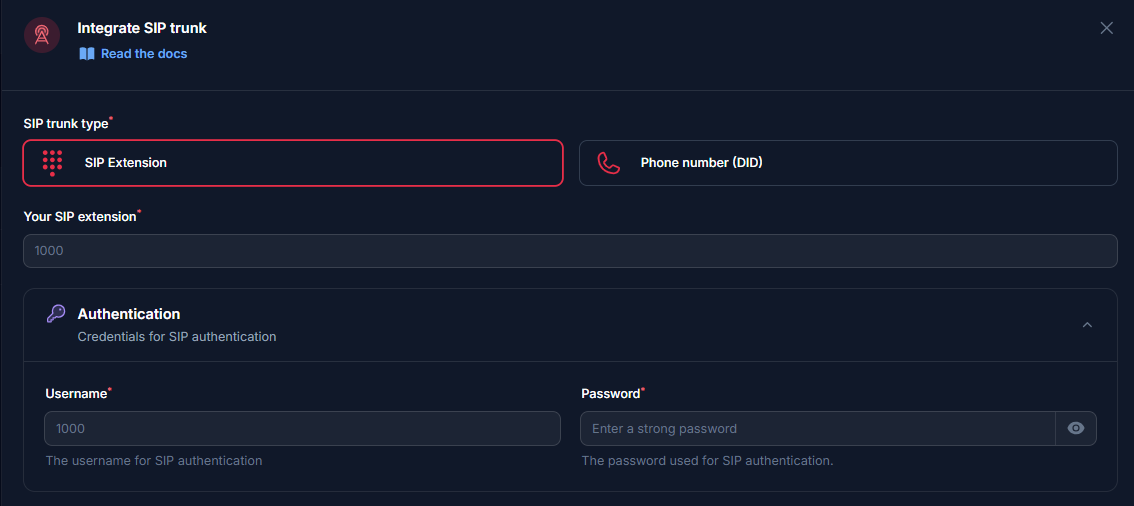
For Direct Number:
Phone number: e.g., +1 555 0123
			Username: Provided by your phone company
			Password: Provided by your phone company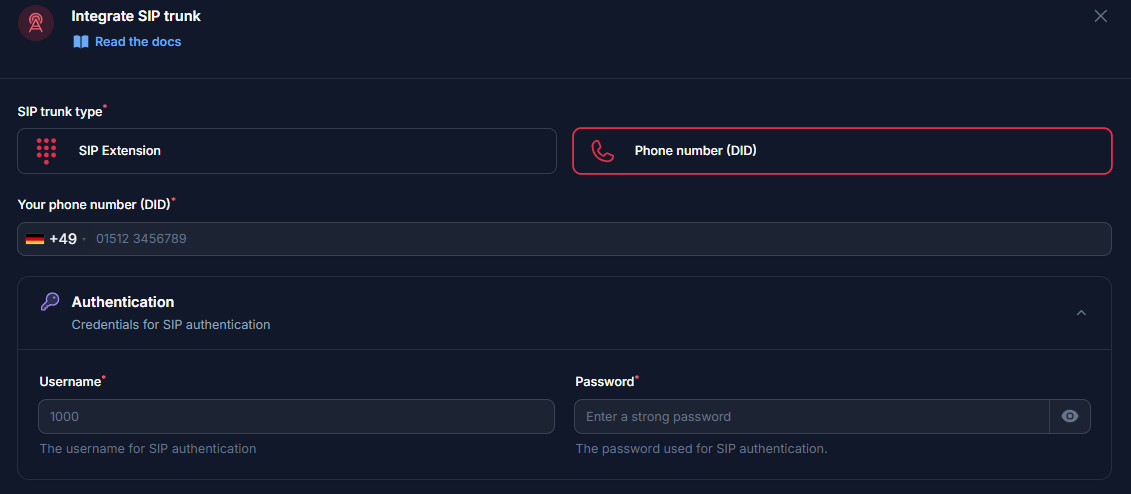
Step 4: Outbound Settings
These settings control how OtoniStark sends outbound calls through your SIP provider.
- SIP Address - Enter the address/server of the SIP trunk without the port.
-
Outbound Proxy (Fixed IP)
- Some SIP providers require calls to originate from a single, whitelisted IP address. Configure this as follows:
- Toggle ON - If your SIP provider requires a fixed source IP, enable Outbound proxy will come from a fixed IP address. OtoniStark will then send all outbound requests through a known static IP. Use this option only if your provider explicitly requires a single source IP.
- Toggle OFF: - If your provider accepts calls from any IP, leave this option off. In that case, OtoniStark will send calls from dynamic IPs.
SIP address: (e.g., pbx.company.com/sip.provider.com)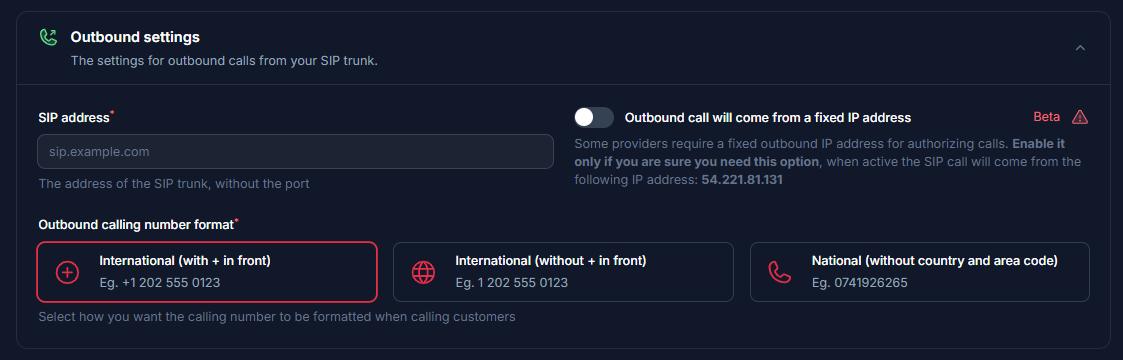
Step 5: Number Format Configuration
This tells our system how to format phone numbers when making calls. Choose based on your provider’s requirements:
-
International with +
Format: +[country][number] Example: +1 202 555 0123 SIP Request: sip:+12025550123@your.pbx.com -
International without +
Format: [country][number] Example: 1 202 555 0123 SIP Request: sip:12025550123@your.pbx.com -
National format
Format: [local number]
			Example: 0741926265
			SIP Request: sip:0741926265@your.pbx.com
Step 6: Inbound Settings
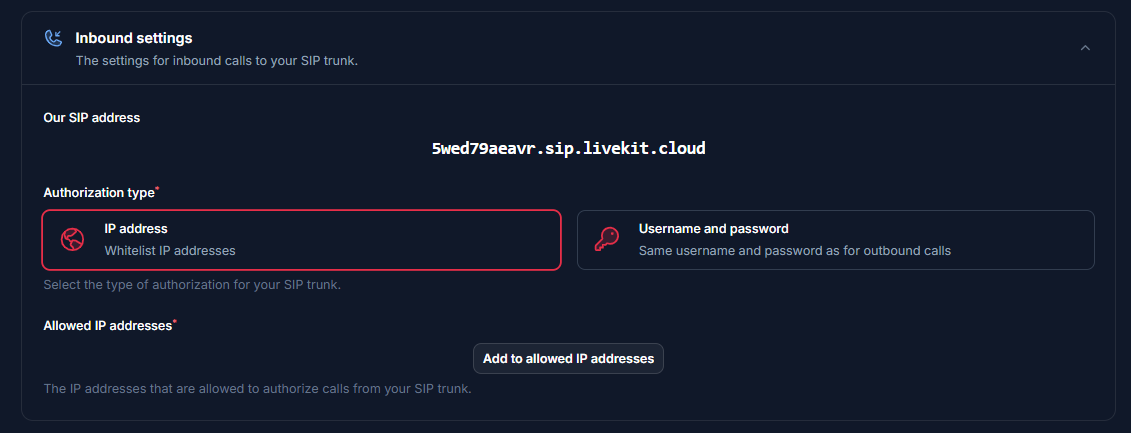
These settings determine how OtoniStark receives and authenticates inbound calls from your SIP provider.
-
Our SIP Address
- OtoniStark assigns a unique inbound SIP URI
5wed79aeavr.sip.livekit.cloud. Your SIP provider must be configured to send inbound calls to this address by pointing their outbound trunk or routing rule to this URI. - IP Address (Whitelist IPs) - If your SIP provider can send calls from a known set of public IP addresses, choose IP Address. Then add each provider IP to the whitelist under Inbound Authentication.
- Username and Password - If your provider supports SIP auth, choose Username and password. The same credentials you entered under Outbound Settings (username/password) will be used to authenticate inbound calls. Make sure your provider’s PBX is configured to include those credentials.
Step 7: Country Selection
Select the country where your SIP trunk is provisioned.

Step 8: Verify Setup
After configuration:
- Make a test call to your number/extension
- Check that the AI assistant answers
- Use the test call feature to verify outbound calling
Security Requirements
Your SIP credentials need to be secure:
- Username: Your extension number or provider-supplied username
-
Password must have:
- 12 or more characters
- Numbers
- Upper and lowercase letters
- Special characters recommended
Common Questions
Need help setting up? Our support team specializes in helping customers integrate their phone systems. We’ll guide you through the entire process, ensuring a smooth setup with your specific phone system configuration.